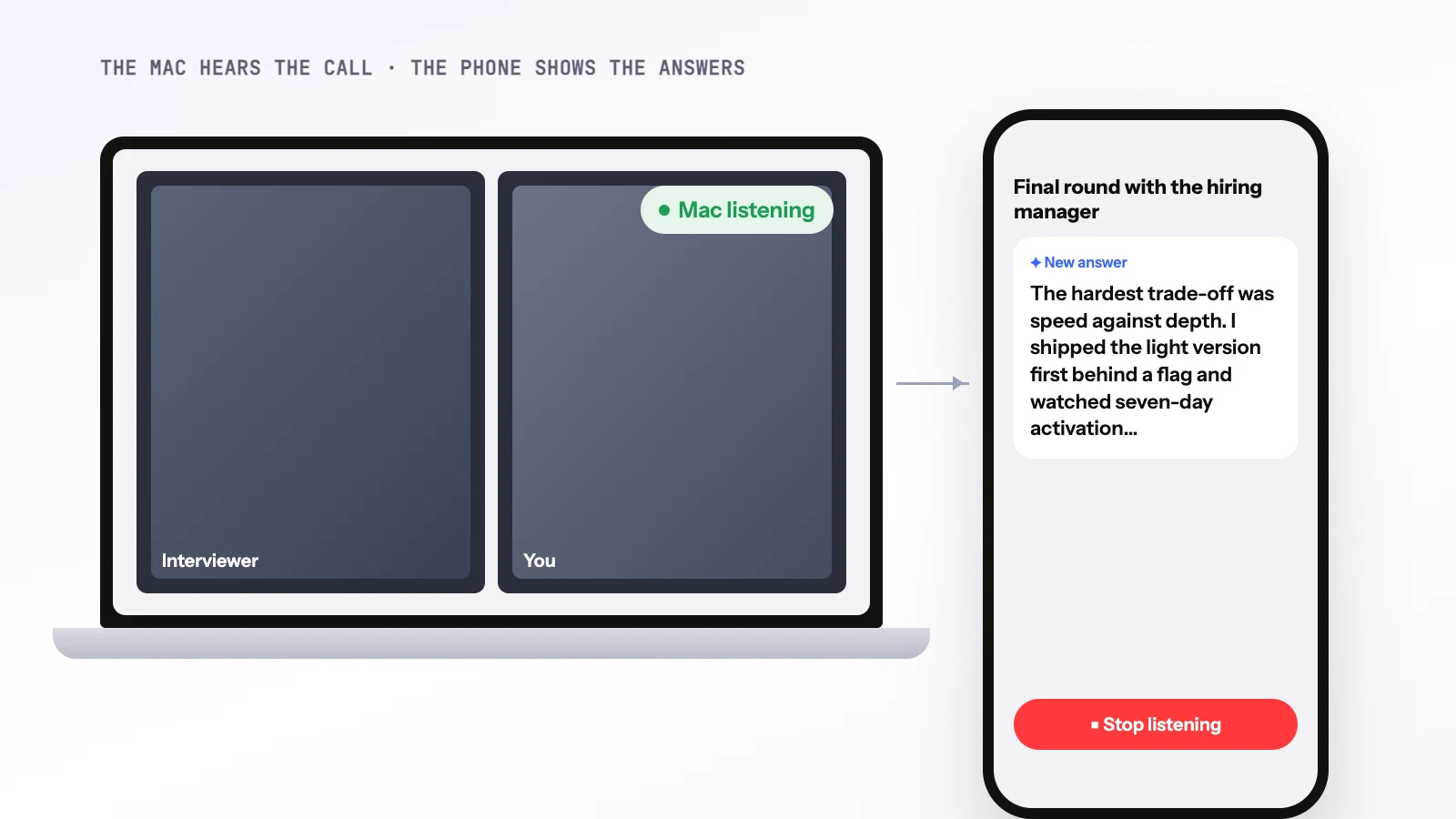
MagicInterview listens to your interview and suggests what to say next. On a phone, that runs into a limit of iOS: while you are on a call, the app cannot hear it. This note explains why, and what the Mac does instead.
What iOS gives an app during a call#
A call takes the microphone away from other apps. When Phone, FaceTime or a call app such as Meet or Zoom is active, the call has the microphone and an app that was recording is interrupted.
The app can at least notice this. The iPhone app watches for it, with both the call state and the audio session's interruption notice, and it pauses listening while a call has the microphone. When the call ends, it resumes.
ReplayKit looks like the way around it, since it is the route for capturing what a phone is playing. ReplayKit gets no audio during Phone, FaceTime, Zoom or Meet calls. So MagicInterview on an iPhone cannot hear the other side of a call on that same iPhone.
The Mac does hear it#
A Mac does not have this limit on the sound it plays. With the user's permission, the Mac app can capture everything the Mac is playing, whichever app it comes from. So when the call is on your Mac, the Mac hears the other person directly.
That gave us a design that works with the limit instead of fighting it: the Mac listens, and the phone shows the answers.
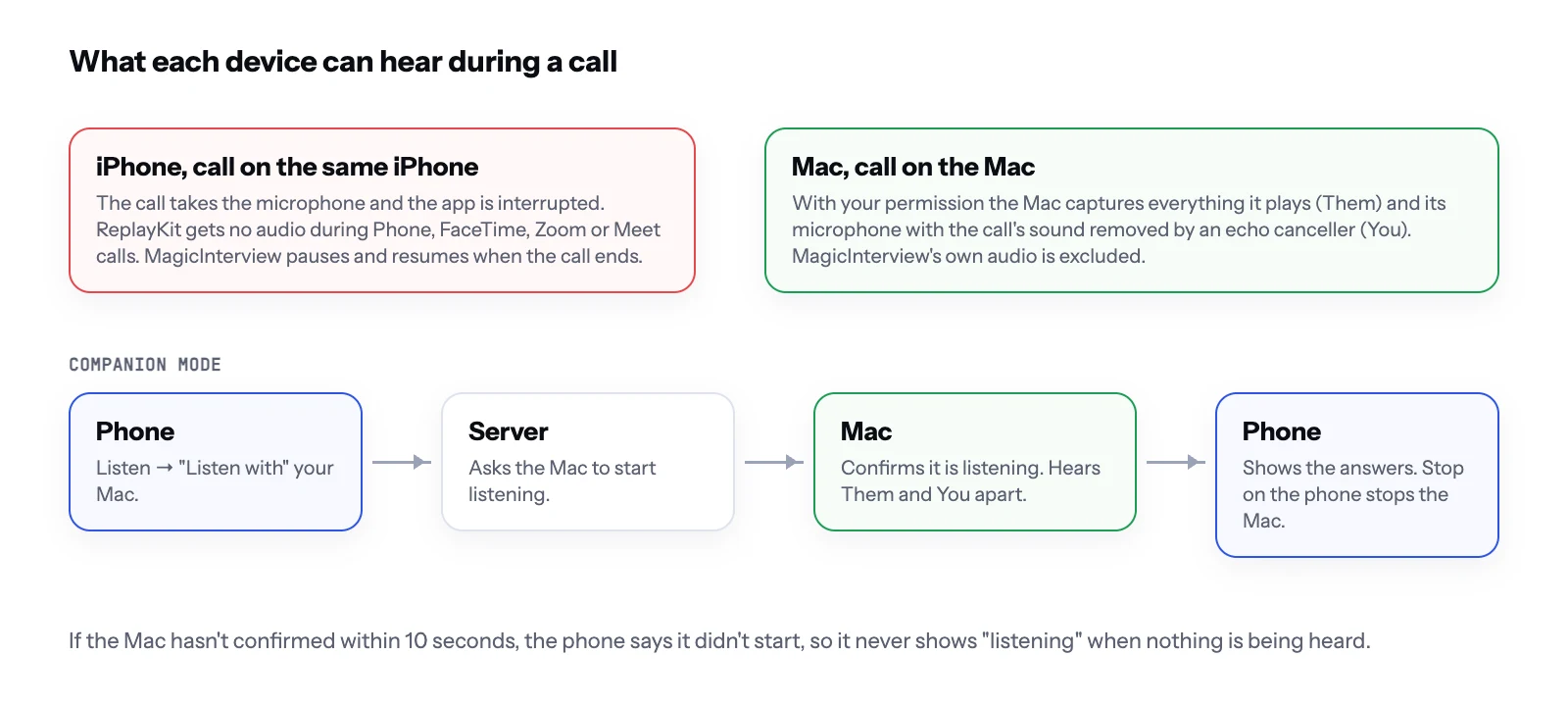 What each device can hear during a call, and how companion mode connects them.
Companion mode#
When MagicInterview is open on a Mac signed in to the same account, the phone's Listen screen offers "Listen with" followed by your Mac's name first, and picks it by default. Choosing it does this:
- The phone asks the Mac, through the server, to start listening.
- Once the permission is granted, the Mac hears everything it plays as Them, with no window to choose, and its microphone as You, with the call's sound removed by an echo canceller. Their words and yours stay apart.
- The answers reach the phone through the same sync as everything else.
- Stop listening on the phone stops the Mac.
The Mac captures the sound of the whole computer and excludes MagicInterview's own audio, so the app does not hear itself.
The phone does not assume it worked. It shows the Mac as listening only once the Mac reports that it is, so a Mac waiting on a permission prompt never looks like it is listening. If the Mac has not confirmed within 10 seconds, the phone says it did not start and suggests checking MagicInterview on the Mac, which may be asking for permission to hear the computer's sound, or waiting for you to choose the display in macOS's share picker.
When it applies#
Companion mode is for a call on the computer with the phone next to it. It does not make an iPhone hear a call on that same iPhone. For a call playing from another device's speaker, or a conversation in person, the phone's own microphone remains the right choice, and it is still there as the second option.
The takeaway#
When the platform will not let one device hear the call, move the listening to the device that can. The Mac handles the sound, the phone shows the answers, and both use the same account and the same conversation, so there is nothing to copy over.