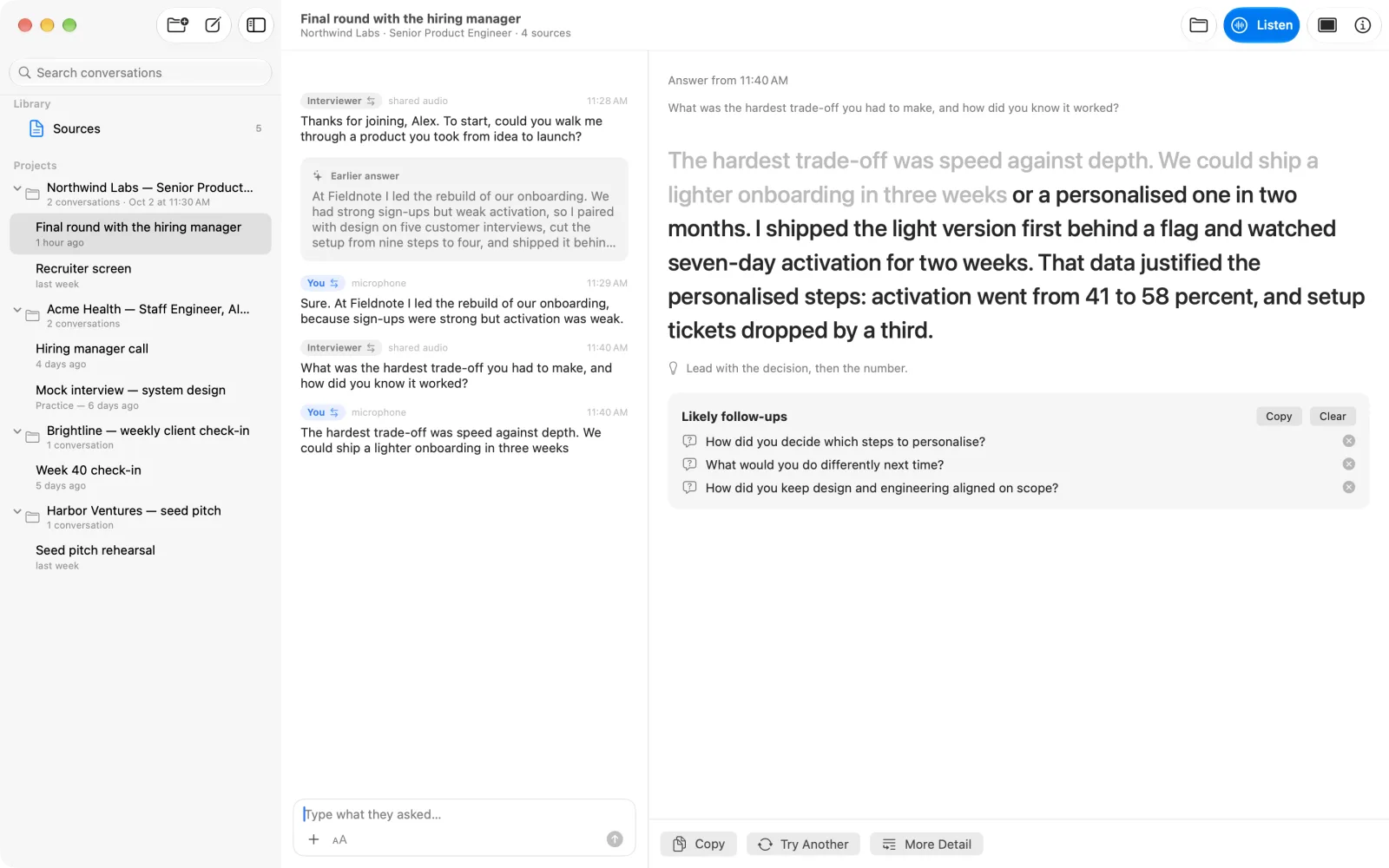
Start with a page you already use#
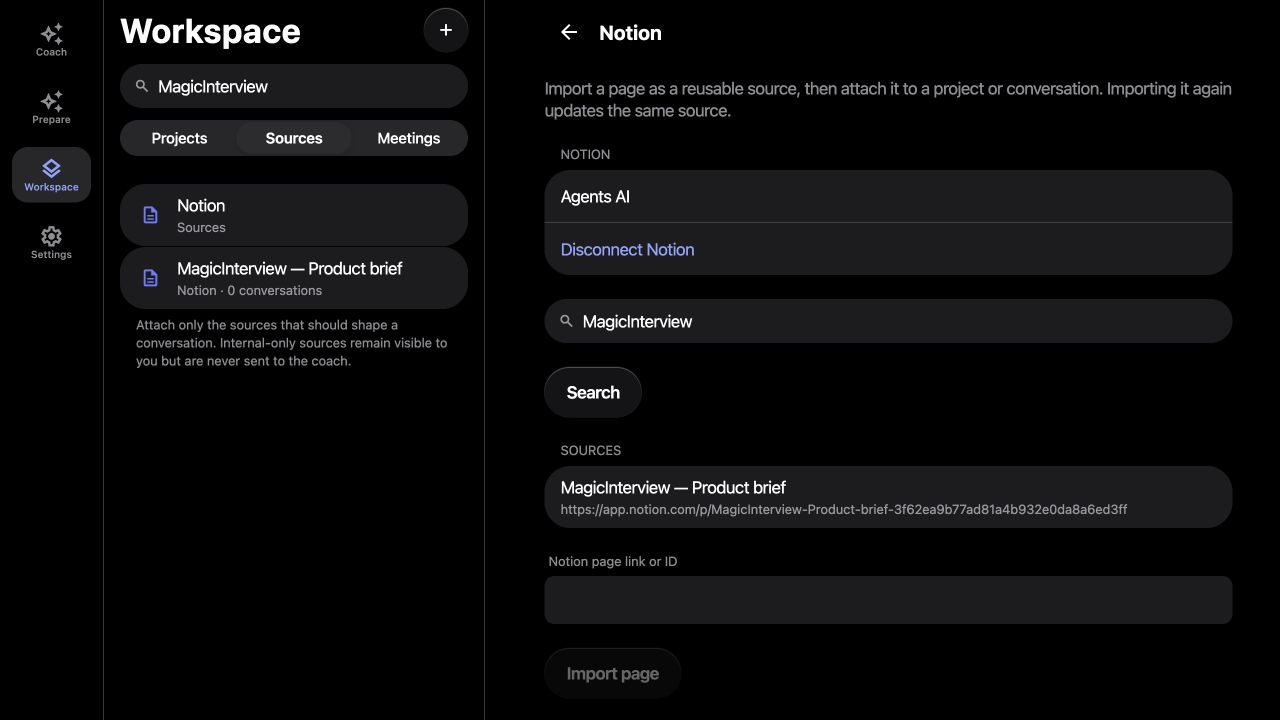
Bring in a job description, interview notes, a client brief or meeting preparation from Notion. Open Workspace → Notion to connect. Sign in or create a MagicInterview account first if needed.
Import one page when you need it#
Open Import a single page. Search the pages shared with MagicInterview and select one, or paste its Notion page link and choose Import page. MagicInterview saves the supported page text as a reusable source. Attach that source to the project or conversation where you want to use it. Importing the same page again updates that source; this option does not continuously refresh it.
Keep your meetings connected#
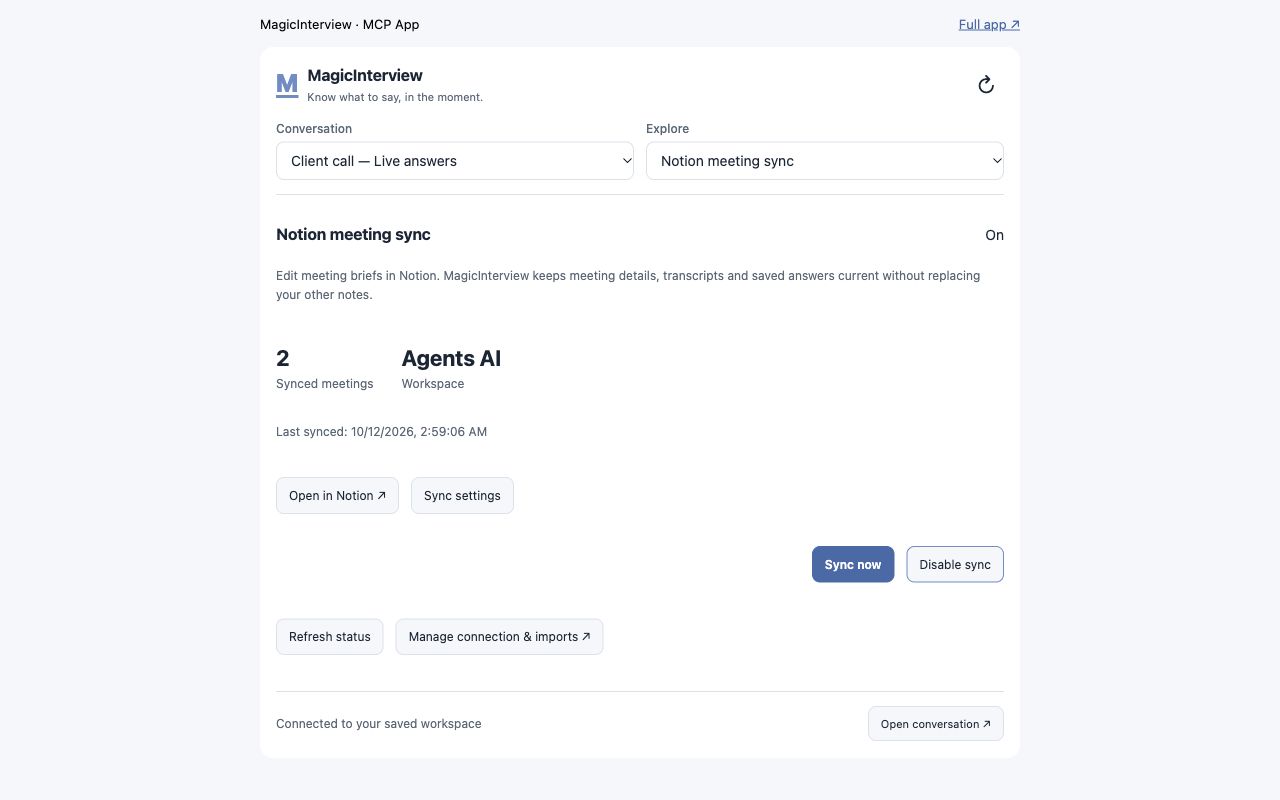
Under Meeting sync, paste a parent page shared with MagicInterview. Choose All projects to include current and future project meetings, or Selected projects to limit sync to the projects you choose, then select Enable sync. MagicInterview creates its own home with Projects and Meetings databases inside that page.
MagicInterview updates project and meeting details, links back to the app, transcripts and saved coaching in Notion. Each meeting has three sections: Brief · edit in Notion, Transcript · from MagicInterview and Coaching · from MagicInterview. The brief starts with the conversation’s notes, project notes and attached sources; subsequent edits to that Notion brief become a source attached to the MagicInterview conversation. MagicInterview updates its managed transcript and coaching blocks without replacing other notes you add.
Enabled sync runs periodically. Choose Sync now when you need a fresh update, and check Last synced and any error shown before relying on it.
If a page is missing or sync needs access#
In Notion, open the page’s Connections menu and add MagicInterview, then search again. Meeting sync needs read, insert and update access. If MagicInterview asks you to reconnect after those permissions change, choose Reconnect Notion and authorize the shared parent page again. See Notion’s authorization guide and connection capabilities.
Stay in control#
Choose Disable sync to stop ongoing updates while retaining saved sources and Notion pages. Disconnect Notion removes MagicInterview’s saved connection, tokens and sync configuration; previously imported sources and pages already created in Notion remain. Delete those separately when you no longer need them. Setup and sync management are on the web; saved workspace sources are available across your signed-in devices. See how Notion data is handled.
Notion provides preparation context and a place to review saved conversation material. For live audio and suggestions during your call, open the MagicInterview app.