Guide

Connect MagicInterview in VS Code

Add MagicInterview as an HTTP MCP server in VS Code, authorize your account and work with your saved project context.

By MagicInterviewLast updated
  1. Create your free workspace

    Create a MagicInterview account and save your CV, role details or notes in a project. If you already have an account, sign in with the same account when connecting your assistant.

    Create free account · Sign in

  2. Add an HTTP MCP server

    Open the Command Palette and run MCP: Add Server. Choose HTTP, enter the server address shown below and use magicinterview as the server ID. Choose User scope to make it available across your projects.

  3. Trust, start and sign in

    Review the server trust prompt, start the connection and follow the OAuth prompts to sign in to MagicInterview.

  4. Try your first request

    Ask “List my MagicInterview projects.” Then choose a project to work with. Your assistant may ask for permission before making changes.

Configuration for this client

{
  "servers": {
    "magicinterview": {
      "type": "http",
      "url": "https://magicinterview.ai/mcp"
    }
  }
}

All apps and AI assistant guides

When to open MagicInterview#

Use your connected assistant to work with your projects and saved context. Open the MagicInterview app for live listening, voice and screenshot features during a call. Cloud coaching requires Pro; connecting an assistant does not include a Pro subscription.

You sign in with OAuth. You do not need to create or paste an API key.

Configuration reference#

The configuration below shows the HTTP server entry. If you edit an existing MCP configuration, merge the entry inside its servers object. Your VS Code assistant must have MCP support enabled. See VS Code’s MCP server documentation.
Keep your next answer in view
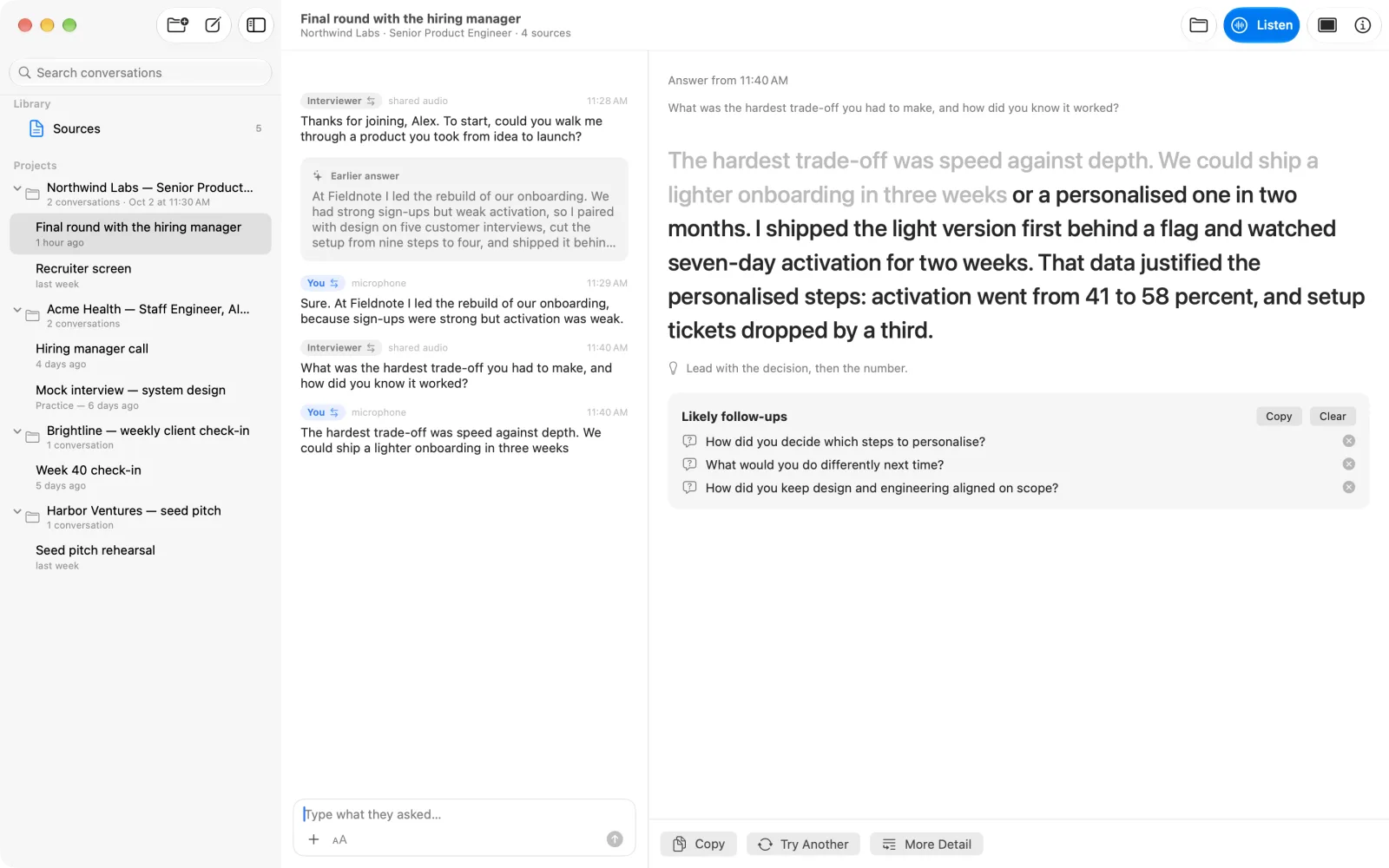
MagicInterview Coach showing an example conversation beside its suggested answer
Illustrative product example · Add your own CV, role or meeting brief.
Your next step

Prepare free. Get live help when it matters.

Pro uses your saved context to suggest what to say during interviews and meetings, with voice practice before the conversation.

  1. 1. Try a free preparation previewNo account needed. Start with your own project story.
  2. 2. Keep your context in a free accountSave and review your CV, briefs and conversations.
  3. 3. Unlock Pro for the conversationLive coaching, cloud speech, spoken practice and research.
€11.99 for one month of ProOne payment. No automatic renewal.

Create an account or sign in, then review the price before paying. Creating an account is free and does not charge you. Store plans have their own prices and renewal terms.

Explore all guides and tools